Connect Form.taxi with Zapier
 Reinhard Söllradl
Founder of Form.taxi and web developer since 2000.
Last updated on
September 30, 2026
4:30 min. reading time
Form.taxi reliably delivers your form submissions by email — but often the data should also be processed automatically: as a contact in your CRM, a row in a spreadsheet, or a message to your team. This is exactly where Zapier comes in. The automation platform connects more than 7,000 web applications with each other — no programming required. With the Zapier integration, every form submission becomes the starting point of a custom workflow. In this article, you'll learn what Zapier is, what's possible in combination with Form.taxi, and how to set up the connection step by step.
What is Zapier?
Zapier is an online automation platform that connects different web applications with each other — without any programming required. The basic principle is simple:
- A trigger starts an automated workflow
- An action is then carried out in another app
- This combination of trigger and action is what Zapier calls a Zap
Example: As soon as a new form is filled out (trigger), a row is automatically created in Google Sheets (action).
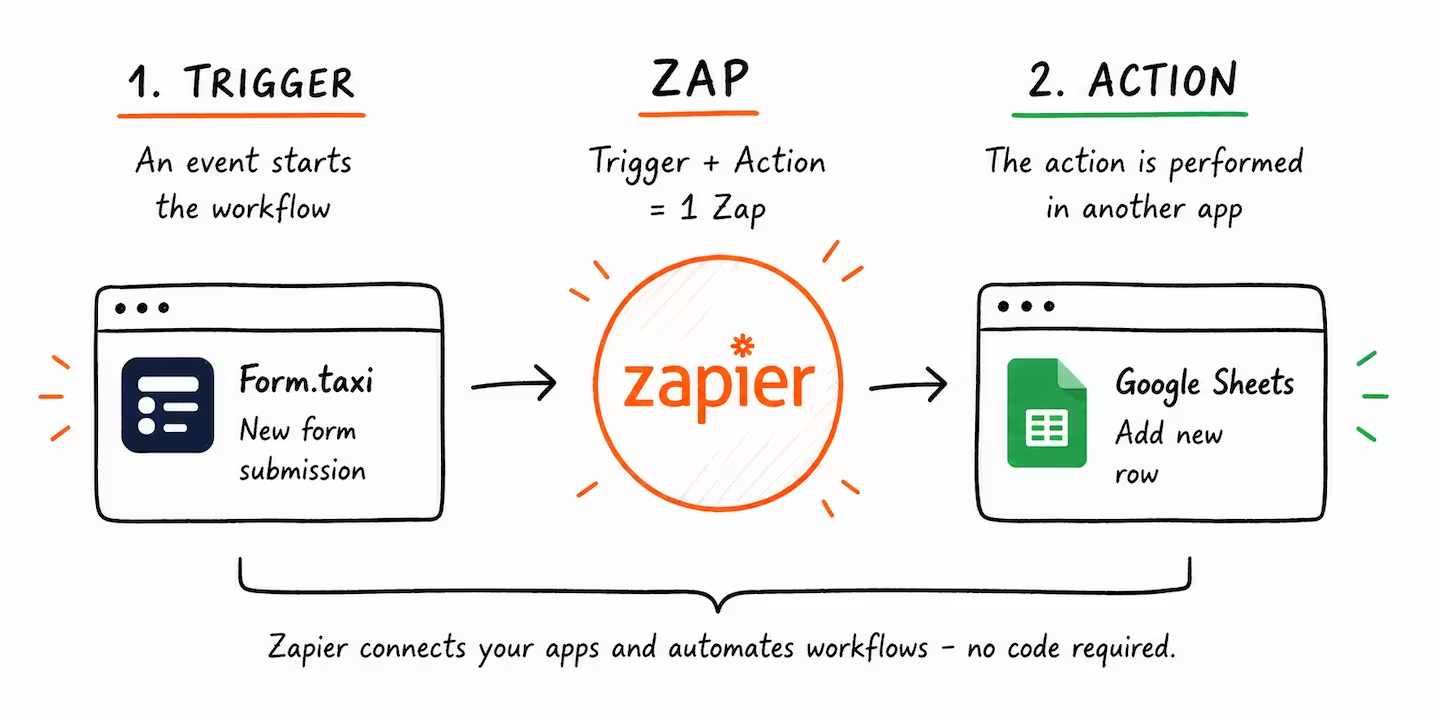
Zapier supports more than 7,000 apps – from Google Sheets to Slack and HubSpot, all the way to Notion, Trello, Mailchimp, and many more. The entire configuration is done through a visual interface in your browser.
There's a free plan for simple automations. For multi-step workflows or higher volume, paid plans are available.
Form.taxi + Zapier: How the integration works
Form.taxi provides one trigger in Zapier: „New Submission". It fires every time a new form submission arrives through your form connection.
All form fields — based on the name attributes in your HTML form — are available as data fields in Zapier. You can map these fields freely in the subsequent actions (e.g. "First name" from the form → "First Name" in the CRM).
The typical flow: Visitor fills out the form → Form.taxi receives the data → Zapier is triggered automatically → data flows into the target app of your choice
Important: Other delivery features such as email delivery remain active in parallel. The Zapier integration is an additional channel.
Use cases
Here are a few concrete scenarios that show what's possible with Form.taxi and Zapier. The trigger is always the same: a new form submission via Form.taxi.
-
Contact form → Google Sheets + Slack
Every inquiry is automatically recorded in a spreadsheet and your team is notified in a Slack channel. -
Quote request → Create a CRM contact
Leads from the form land directly as new contacts in HubSpot, Pipedrive, Zoho CRM, or Salesforce — no manual transfer needed. -
Job application form → Email to HR + entry in Airtable
Applications are recorded centrally in Airtable and the HR department is automatically notified by email. -
Support request → Ticket in Zendesk or Freshdesk
Every support request automatically becomes a ticket in your helpdesk system. -
Newsletter signup → Contact in Mailchimp or Brevo
New subscribers are immediately added to your mailing list. -
Task management → Create a Trello card
A card is automatically created in Trello for every submission — ideal for processing within a team.
These are just a few examples. With over 7,000 apps in Zapier, the possibilities are virtually unlimited.
Popular workflows
Get started right away with a ready-made workflow. Click "Use this workflow" to set up the Zap in your Zapier account.
Setting up the connection — step by step
-
Create a Zapier account or log in
Go to zapier.com and create a free account if you don't have one yet. -
Create a new Zap
Click „Create Zap" in the Zapier dashboard.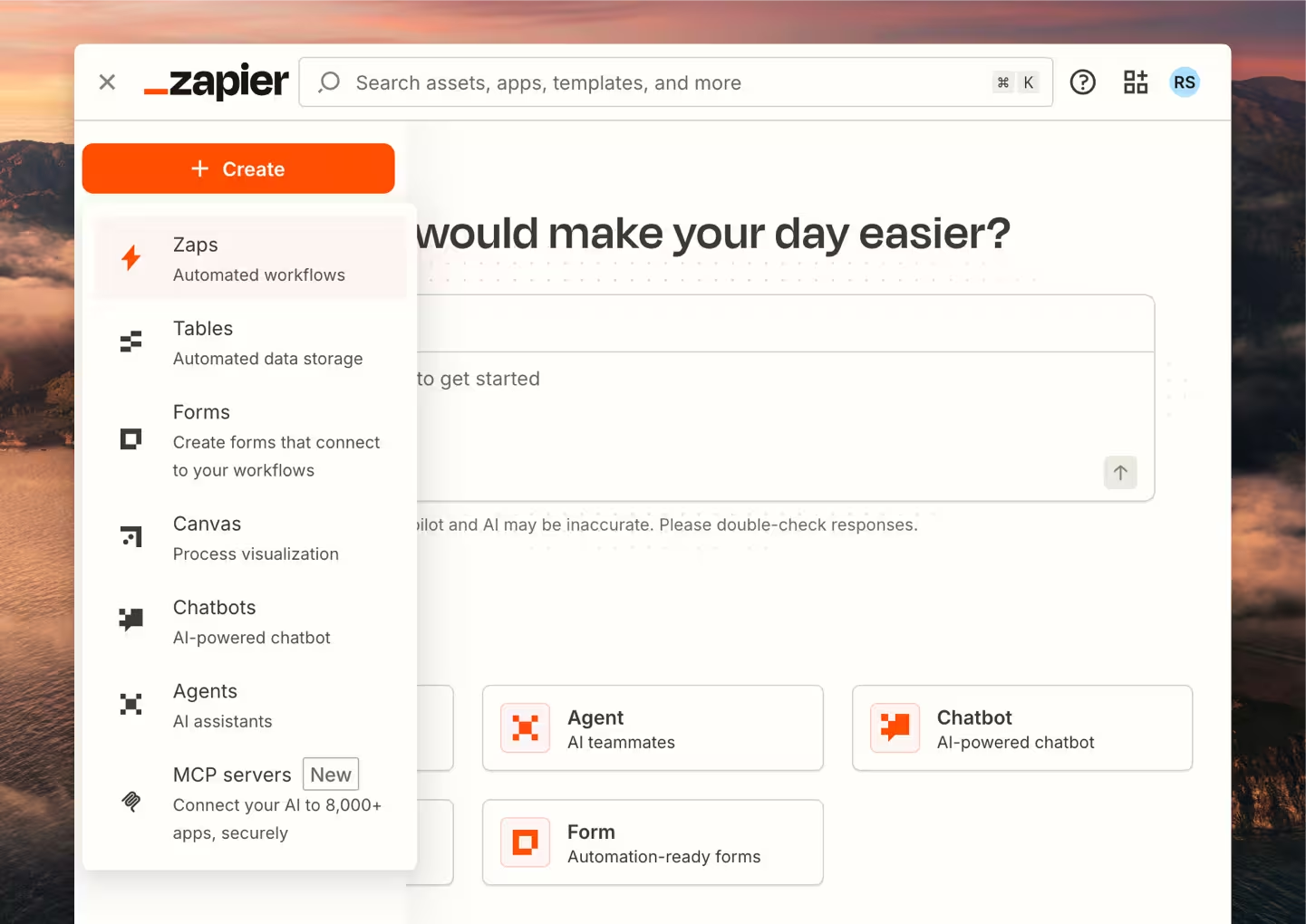
-
Select Form.taxi as the trigger app
In the trigger step, search for "Form.taxi" and select the app.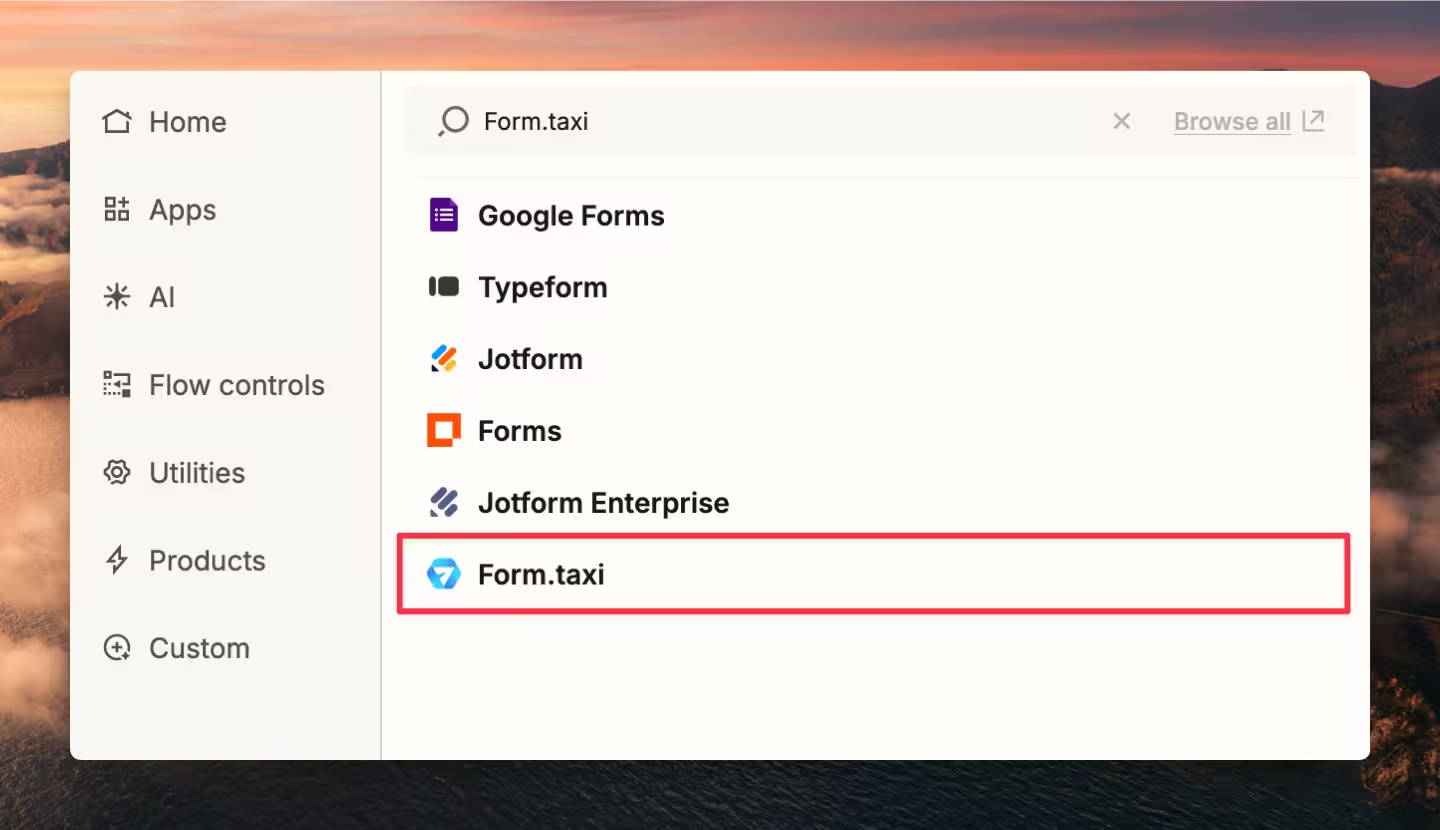
-
Choose the trigger event
Select "New Submission" as the trigger event. This event fires with every new form submission.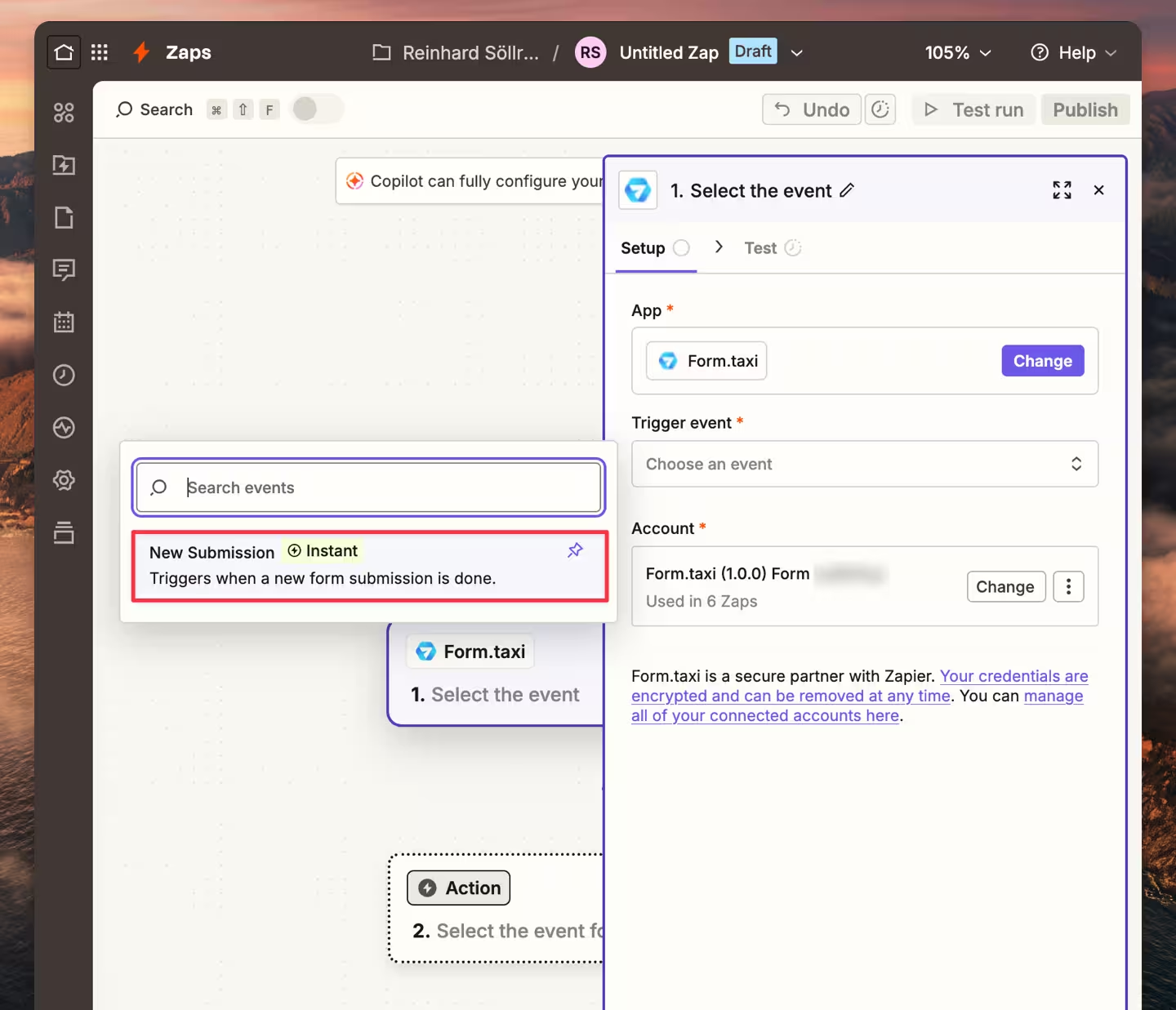
-
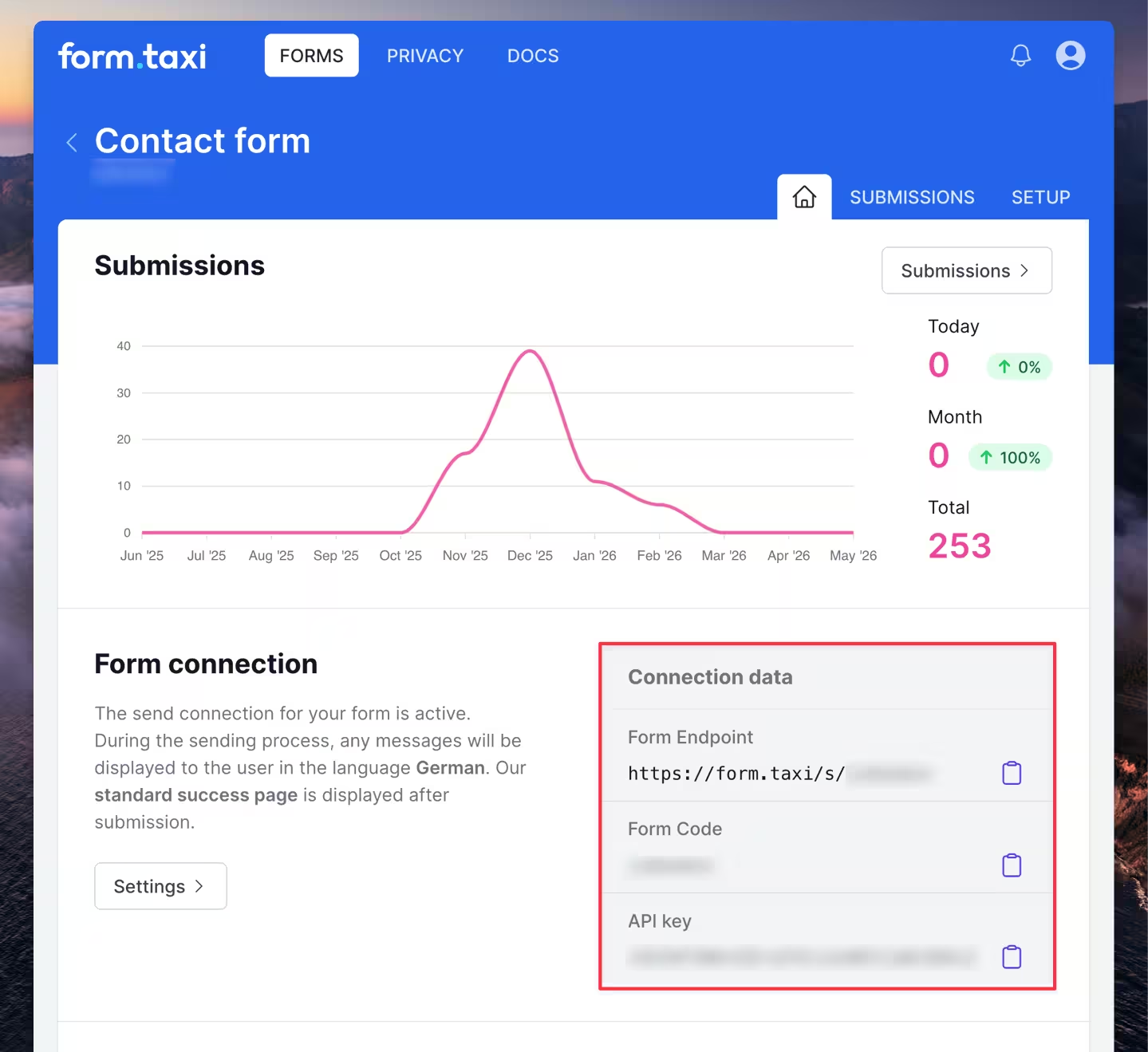
Connect your Form.taxi account
Zapier asks for two credentials:- API key – your personal API key
- Form code – the unique code of your form connection
-
Test the trigger
Zapier tries to retrieve an existing submission. If there isn't one yet, send a test form and click "Test trigger".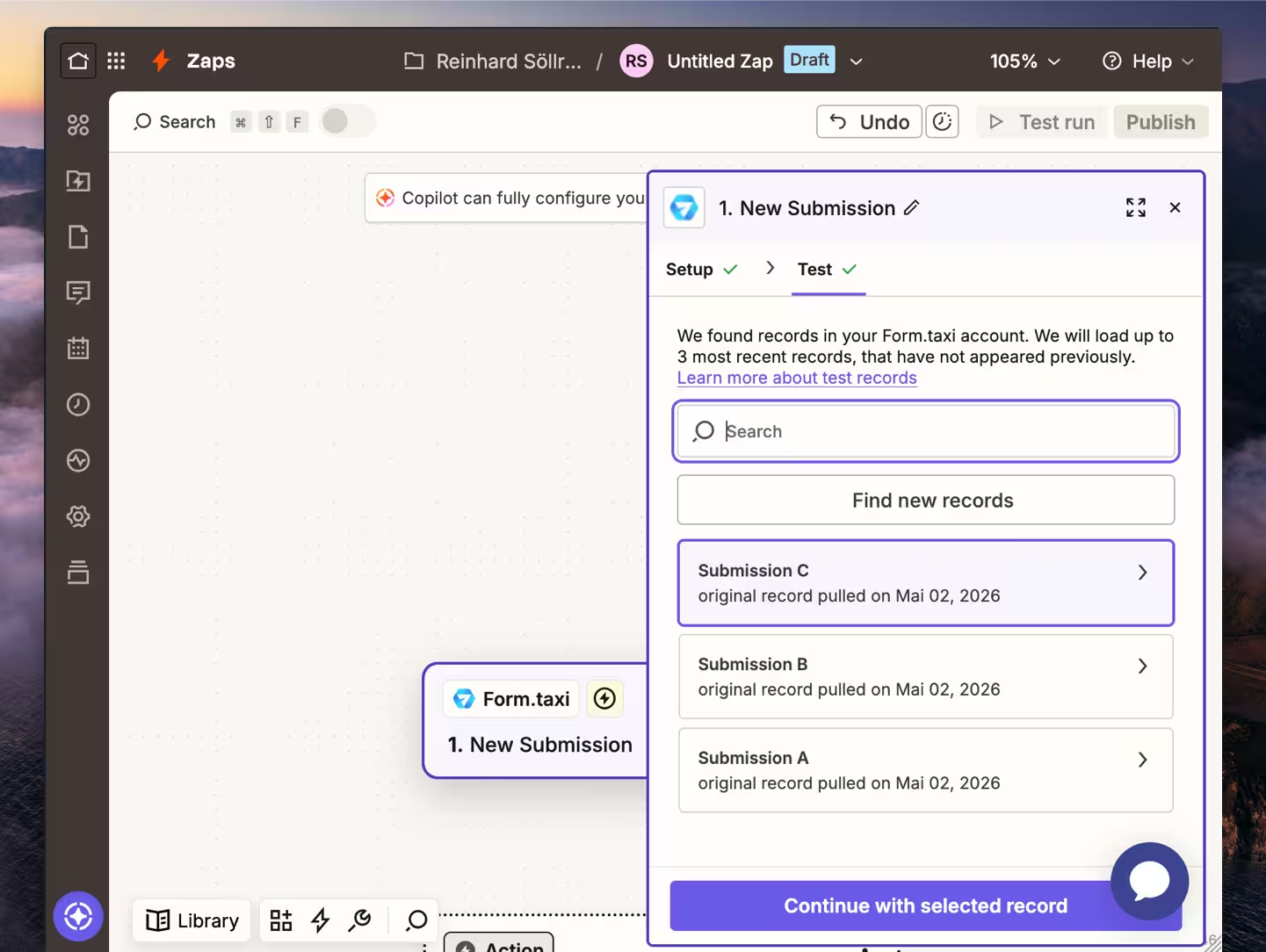
-
Configure the action
Select the target app (e.g. Google Sheets), choose the action (e.g. "Create Spreadsheet Row"), and map the form fields to the corresponding fields in the target app. -
Test and turn on the Zap
Run a test of the action, check the result, and turn on the Zap.
Tips for getting the most out of it
Use descriptive field names
The name attributes of your HTML form fields appear as data fields in Zapier. Instead of field1, use more descriptive names like firstname, email, message. That way, you can immediately tell in Zapier which field holds which data.
Use multi-step Zaps
A single trigger can set off several actions in sequence. For example, you can save the data to Google Sheets and send a Slack message at the same time.
Use filters and formatters
With filters, you run a Zap only under certain conditions — for example, only when the "Subject" field contains the value "Urgent". With the formatter, you can transform data before it's passed on (e.g. format a date, shorten text).
Conclusion
Form.taxi + Zapier = the easiest way to forward HTML form data automatically to more than 7,000 apps. No server, no programming.
Feedback or questions?
Please send us your message. We will personally address your concerns.